Ultron AI assistant PC ONLY
🤖 ULTRON AI ASSISTANT
ULTRON is a powerful personal AI assistant built for Windows PC, designed to give you a futuristic and interactive AI experience directly from your computer.
ULTRON can understand your commands, communicate with you through voice and text, perform useful PC actions, provide information, and much more.
⚡ WHAT CAN ULTRON DO?
🧠 AI Conversations
Talk to ULTRON naturally, ask questions, get information, brainstorm ideas, and have intelligent conversations.
🎤 Voice Recognition
Speak directly to ULTRON using your microphone and give it commands without needing to type.
🔊 AI Voice Responses
ULTRON can respond to you using text-to-speech, making the assistant feel more interactive and realistic.
💻 PC Controls
Open applications, websites, and perform various useful actions directly from your computer.
🌐 Internet Assistance
Use ULTRON to find information and assist you with online tasks.
⏰ Timers & Reminders
Set timers and reminders through simple commands.
🖥️ System Information
Check useful information about your Windows PC and system.
🗺️ Maps & Location
Access map and location-related features.
⚙️ Command System
ULTRON includes a growing collection of commands that allow you to control different features of the assistant.
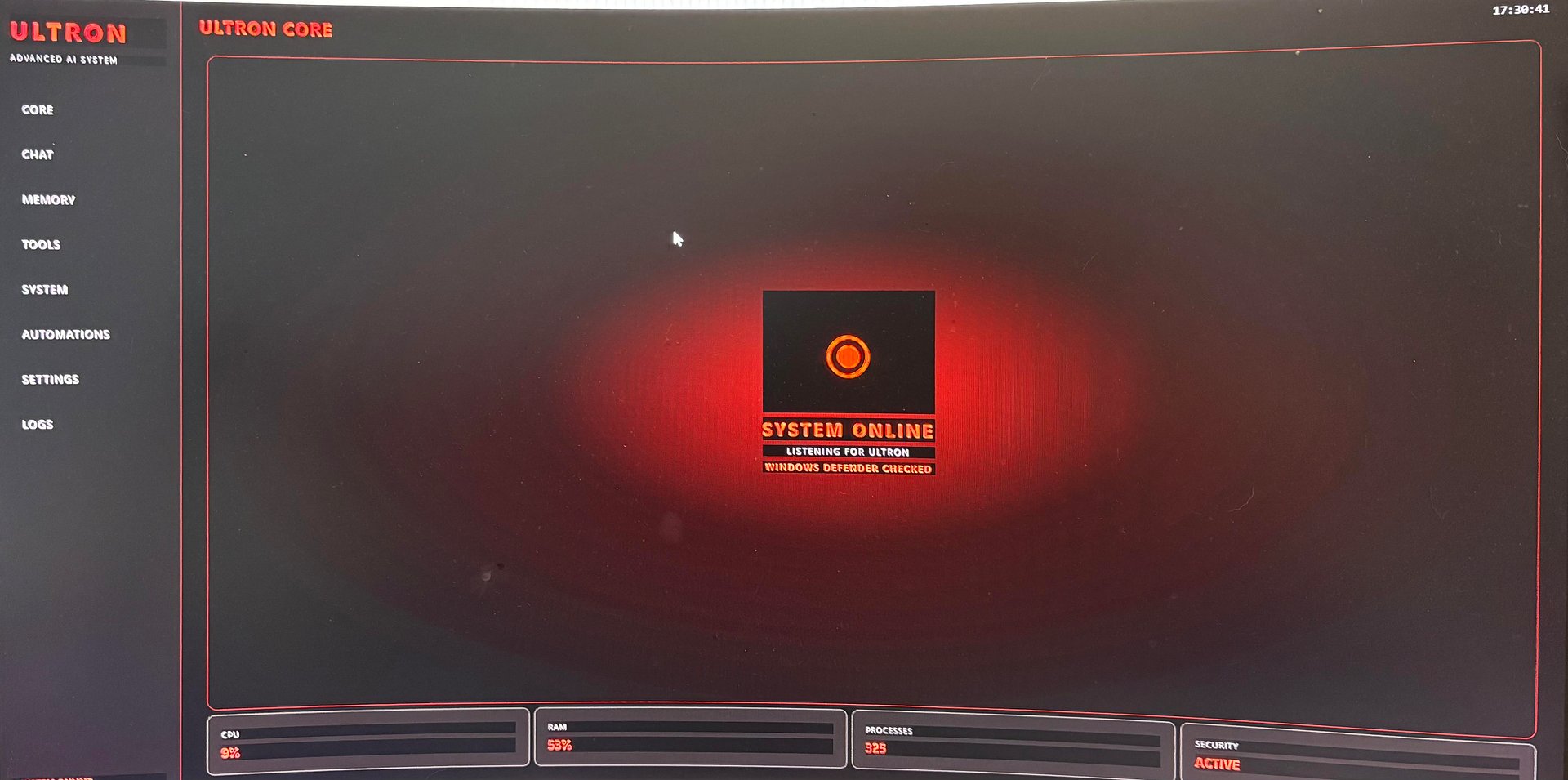
🎨 Futuristic Interface
A custom futuristic interface designed to make ULTRON feel like a real advanced AI system.
🚀 NEW UPDATES COMING VERY SOON
ULTRON is still actively being developed, and new updates are coming very soon!
Future updates will bring new AI capabilities, additional voice commands, improved PC controls, interface improvements, better performance, new automation features, and many more features.
This is only the beginning of ULTRON.
More features. More intelligence. More control.
🖥️ HOW TO INSTALL ULTRON
⚠️ PC ONLY
ULTRON is currently available for Windows PC only.
You will need:
-
🪟 A Windows PC
-
🐍 Python installed
-
🌐 An internet connection
-
🎤 A microphone if you want to use voice commands
-
🔑 Any required API keys for your ULTRON configuration
📥 STEP 1 — DOWNLOAD ULTRON
Download the latest ULTRON files and extract the ULTRON folder somewhere easy to find, such as your Desktop.
⚡ STEP 2 — OPEN WINDOWS POWERSHELL
Open the ULTRON folder.
Click the folder's address bar, type:
powershell
and press Enter.
This will open Windows PowerShell directly inside the ULTRON folder.
🐍 STEP 3 — CHECK PYTHON
In PowerShell, type:
python --version
and press Enter.
If Python is installed correctly, you should see your Python version.
📦 STEP 4 — INSTALL ULTRON REQUIREMENTS
In the same PowerShell window, type:
pip install -r requirements.txt
and press Enter.
Wait for the required packages to finish installing.
🔑 STEP 5 — ADD YOUR API KEY
Open the ULTRON configuration file and enter your API key where required.
IMPORTANT: Never post your API key publicly or send it to other people.
▶️ STEP 6 — START ULTRON
Once everything has finished installing, type:
python main.py
and press Enter.
ULTRON should now launch.
🔥 QUICK START
For future launches, open PowerShell in the ULTRON folder and simply run:
python main.py
🛠️ HAVING PROBLEMS?
If PowerShell says that Python is not recognized, install Python and make sure "Add Python to PATH" is enabled during installation.
If you receive a missing-package error, run:
pip install -r requirements.txt
again.
If ULTRON still doesn't start, check that you're running PowerShell inside the ULTRON folder.
🤖 ULTRON
Your AI. Your PC. Your Assistant.
ULTRON is continuously evolving, with major new updates coming very soon.
This is only the beginning.